Skip to content

Visual guide · Fiscal station

Set up the fiscal station in five steps

About ten minutes, on the Mac that will stay on at the clinic. When you finish, the station will submit every invoice you issue from Clynalia to the Tax Agency on its own.

  • A Mac with macOS 14 or later
  • Your Clynalia owner account
  • The issuer's digital certificate (.p12) and its password
1

Download it from the Mac App Store

Open the App Store on the Mac, search for “Clynalia Fiscal Station” and click Get. It is free. Updates arrive on their own if automatic updates are on.

Download on the Mac App Store

Clynalia Fiscal Station

Remisión VERI*FACTU a la AEAT

Finance · Free

2

Sign in with the owner account

Open the station and sign in with the same account you use in the app. We recommend Sign in with passkey: you confirm on your iPhone and never type a password on that computer.

Sign in as the owner: that authorises the station to start on its own after a restart. With the reception account it works, but it does not start on its own.

3

Install the issuer's certificate

Click Install certificate (.p12)…, choose the digital certificate file of whoever issues the invoices and type its password. It is the same certificate you use on the Tax Agency’s website.

The private key stays in this Mac's Keychain: it is not synced to iCloud and cannot be exported. Clynalia only receives the public part: holder, tax ID and expiry date.

4

Keep it always on

Tick Open at login on the dashboard and, in System Settings, stop the Mac from going to sleep. The law requires retrying at least every hour while anything is pending: a sleeping Mac cannot do that.

5

Check that the dashboard is green

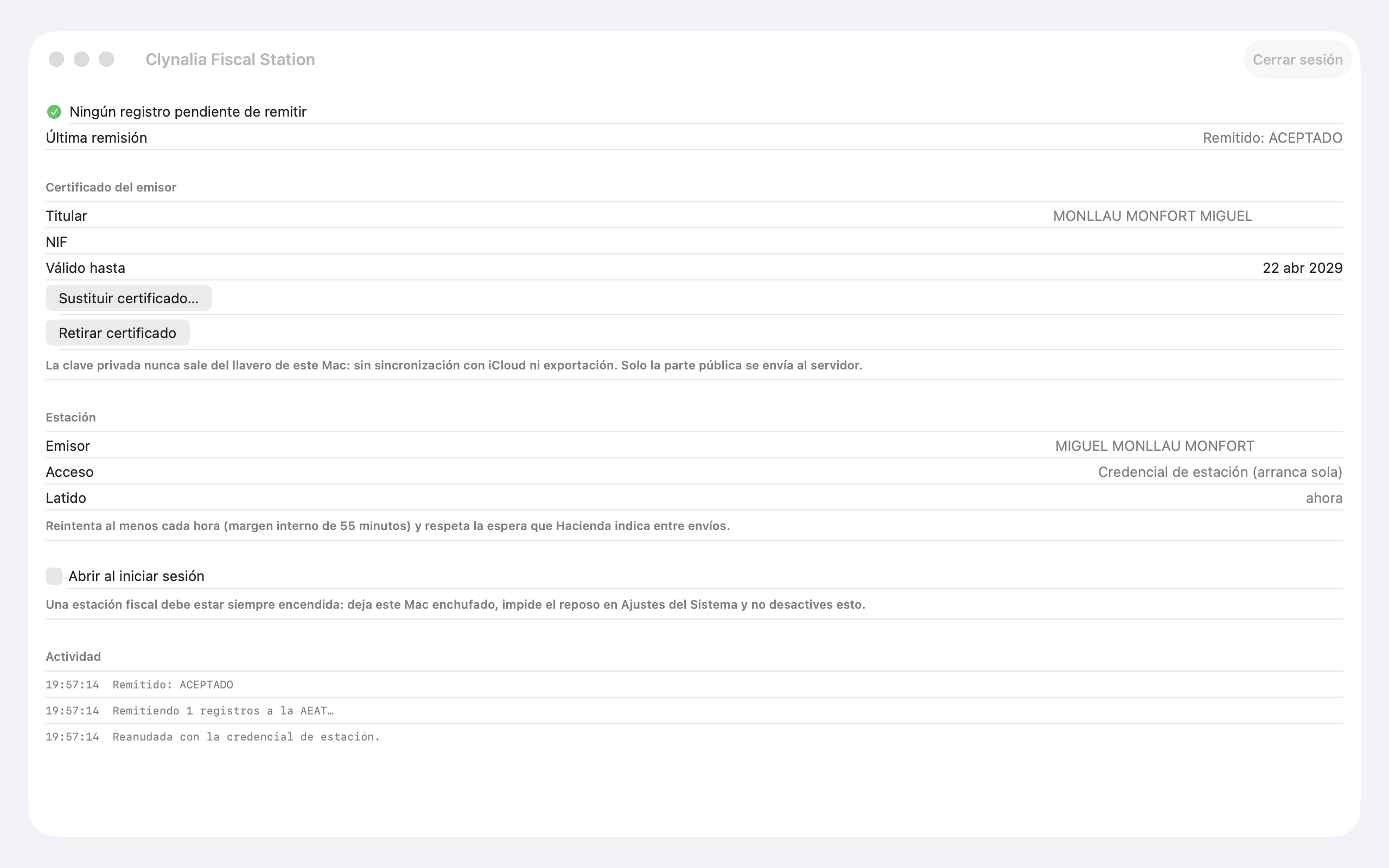
This is what a working station looks like. Issue an invoice from the app: within seconds it shows up under “Last submission” with the Tax Agency's answer.

Station dashboard showing no records pending submission, the last submission accepted, the certificate installed and the station starting on its own (the screen is in Spanish)
ATop, in green: nothing left to submit.
BLast submission: what the Tax Agency answered to the last submission.
CAccess: “Station credential (starts on its own)”.

What each notice means

The line at the top of the dashboard is all you need to watch.

No records pending submission

Everything has been submitted. Nothing to do.

Records pending

Normal for a few seconds after issuing. If it stays, check the internet connection and that the certificate has not expired. It retries on its own every hour.

The tax agency rejected the last submission

Fix that invoice in Clynalia and issue it again. A rejected record does not go back to the queue on its own.

Logging out pauses it

It stops submitting until you sign in again. When the owner signs in, it resumes on its own with the same certificate.

Full guide

The fiscal station is the clinic's Mac that submits billing records to the Spanish Tax Agency (AEAT) with the clinic's digital certificate. This guide explains how to install it, keep it on and what to watch.

What the station is

Clynalia issues invoices from the app, on iPad or iPhone. Each invoice generates a billing record that the VERI*FACTU regulation requires to be sent to the Tax Agency straight away. Sending it requires the clinic's digital certificate, and the certificate never leaves the clinic: that is why the station exists.

The station is a Mac app that stays on at the practice. Every few seconds it checks for new records, sends them to the Tax Agency with the certificate and stores the answer. The practitioner's app then shows whether each invoice was accepted.

If the station is off, invoices are still issued and the records wait. The Tax Agency tolerates the delay but notes it; that is why the station must always be on.

Before you start

You need:

  • A Mac with macOS 14 or later, plugged in and with a stable internet connection. A Mac mini works, or a laptop nobody takes home. This computer will hold the clinic’s digital certificate: it must be under the owner’s control and protected by a login password.
  • The digital certificate as a .p12 (or .pfx) file with its password. If you invoice as a self-employed person, it is your FNMT certificate. If the clinic is a company, it must be the company’s representative certificate, not anyone’s personal one.
  • Your Clynalia user with the owner role. Reception can sign in to the station, but only the owner can set it up to start on its own.
  • The tax issuer set up in the app, under Clinic › Invoicing, with the legal name, tax ID and series. When you save it, the app warns that the first real submission enrols you in VERI*FACTU until the end of the year. It is the clinic’s decision and best made before installing the station.

Install

The station is free and downloaded from the Mac App Store.

  1. On the Mac, open the App Store and search for Clynalia Fiscal Station, or go straight to its store page.
  2. Click Get and then Install. If asked, confirm with your Apple Account or Touch ID.
  3. The station appears in Applications as “Clynalia Fiscal Station”.

Updates arrive through the App Store. Keep automatic updates on (App Store › Settings) so you receive in time any change the Tax Agency requires.

First launch

  1. Open Clynalia Fiscal Station.
  2. Sign in with your owner user. We recommend Sign in with passkey (see “How to sign in” below): you never type a password on that computer. If you prefer the password, it is the same as in the app.
  3. On the dashboard, click Install certificate (.p12)…, choose the file and type its password. The station checks it can read it, shows the holder and expiry date, and stores it in the Mac’s Keychain. From then on you can delete the .p12 file from your Downloads folder.
  4. Turn on Open at login. That way, if the Mac restarts, the station starts again on its own.
  5. In System Settings › Energy (or Battery on a laptop), turn on “Prevent automatic sleeping when the display is off” and, on a laptop, “Wake for network access”. The display may turn off; the Mac must not go to sleep.
  6. Check the dashboard: “Heartbeat” a few seconds ago and “No records pending submission”. Done.

When the owner signs in for the first time, the station receives its own credential and stores it in the Keychain. With it, it starts without asking for a user or password. That credential is only good for submitting records: it gives no access to clinical records or invoices.

How to sign in

You sign in to the station only once, to set it up; after that it starts on its own. Even so, there are three ways and it is worth knowing which to use.

  • Passkey (recommended). Click Sign in with passkey. If the passkey is on this Mac, macOS asks for Touch ID. If it is on your iPhone, the Mac shows a QR code: scan it with the iPhone camera, confirm with Face ID and you are in. Nothing is typed and nothing is stored on the Mac. Create the passkey in the app on your iPhone, under Session › Passkeys, before you go to install the station.
  • Password. The same as in the app. When you sign in, macOS may offer to save it in Passwords; accept only if the Mac uses your Apple Account. If the Mac’s Apple Account is shared by the practice, say no: your password would be within reach of anyone using that computer.
  • Forgot your password? Click the link, confirm your email and you will receive a link that expires in one hour. Open it on your iPhone: the app opens and asks for a new password. Nobody can see the old one, not even us. Go back to the station and sign in with the new one.

Day to day

  • Do not log out of the station without a reason. Logging out pauses it: it stops submitting until someone signs in again. When the owner signs in again, it starts on its own and keeps the certificate; there is no need to install it again.
  • Pending records. The notice “N records pending submission to AEAT” heads the dashboard while any remain. It appears when you issue an invoice and disappears within seconds. If it stays, check the internet connection and that the certificate has not expired. The station retries on its own every hour, as the regulation requires.
  • Certificate about to expire. The dashboard shows the date. Renew the certificate in good time and load it with Replace certificate….
  • Restarts. With “Open at login” on and the Mac’s user session logged in, the station comes back on its own. If the Mac asks for a password at startup, someone has to log in.
  • Moving to another Mac. Log out of the old station (this withdraws its credential) and follow this guide on the new one. Pending records are not lost: they are on the server and the new station will submit them.

Security and responsibilities

  • The certificate never leaves the Mac. It is stored in the computer’s encrypted Keychain, only the station can read it, and it is not copied to the server or to other devices. Clynalia holds no clinic’s certificate.
  • Whoever controls the Mac controls the certificate. It is the same as with any invoicing program installed on a computer: the clinic decides who has access to it. We recommend a login password, automatic screen lock and keeping the Mac at the practice.
  • If the Mac is lost or stolen, revoke the certificate on the FNMT website (or that of whoever issued it) and let us know so we can withdraw the station’s credential. Records already submitted are not affected.
  • What data travels. The station sends the Tax Agency only billing records: the invoice data (the recipient’s tax ID and name when the invoice carries them, amounts, date). Never clinical data.

Help

Write to hello@clynalia.com with the clinic’s name. The station’s dashboard has an activity log with the latest operations; if something fails, a screenshot of that text speeds up the answer a lot.

This guide in Español · Català · Français · Português